Use 1Password SSH Agent for SSH Keys and Git
If you already trust 1Password with API keys, database passwords, and tokens, your SSH keys are the next obvious secret to get out of ~/.ssh/. The 1Password SSH agent lets OpenSSH and Git use keys stored in your vault instead of private key files on disk, which makes day-to-day Git authentication cleaner without turning your home directory into a small museum of long-lived keys.
One detail matters: the op CLI is part of the workflow, but the actual SSH agent is provided by the 1Password desktop app. That matters because it keeps the model honest:
- 1Password stores the private key item
- The desktop app brokers SSH authentication
- OpenSSH talks to the 1Password agent
- Git keeps using SSH exactly the way it always has
If you're already using 1Password for local development secrets, this is the same idea applied to Git access. The application code stays boring, the SSH client stays boring, and the secret moves into the vault where it belongs. If your main goal is application secrets rather than Git access, the companion post is Use 1Password CLI for Local Development.
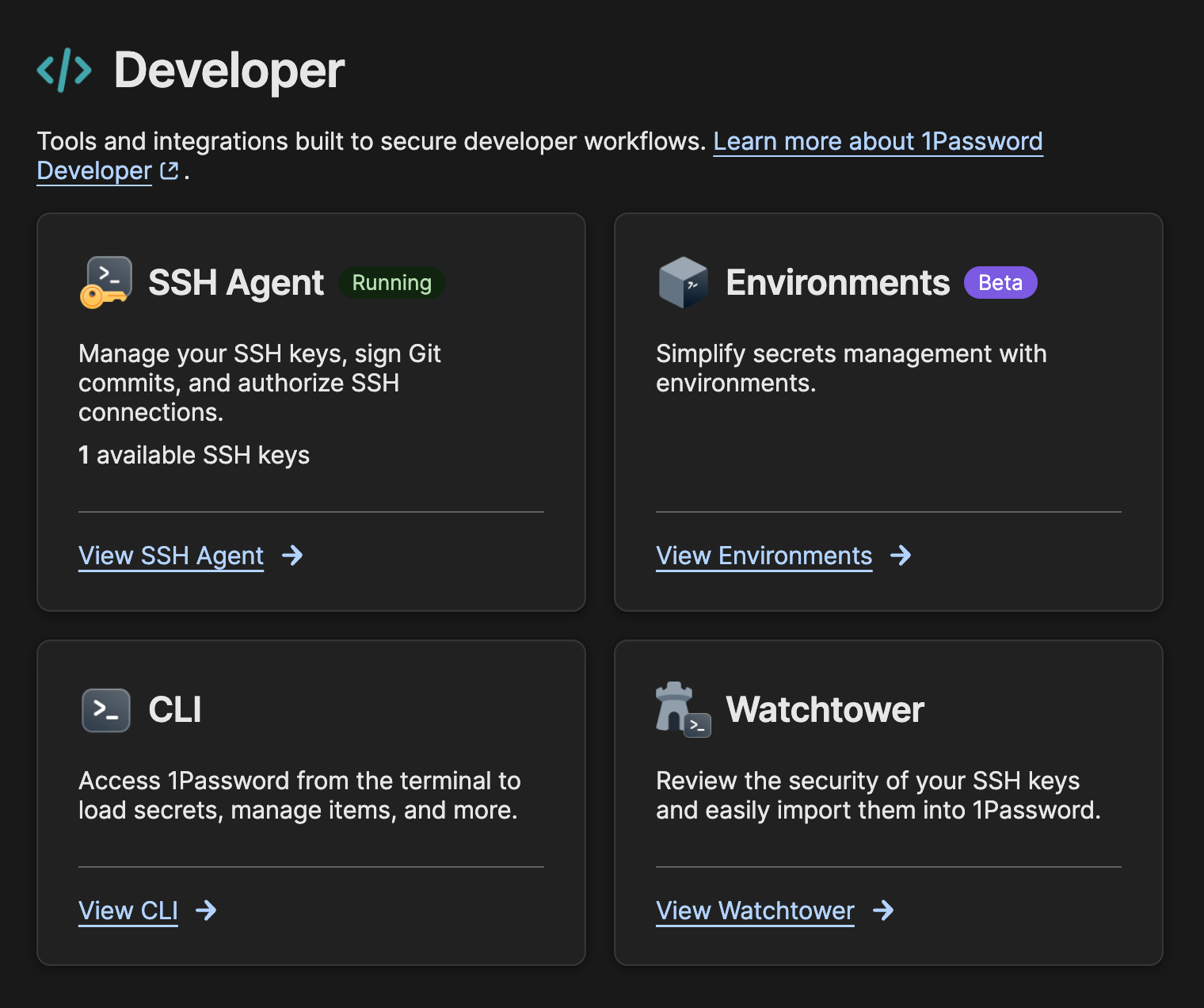
Why Move SSH Keys into 1Password
The default SSH workflow works, but it ages badly:
- Private keys accumulate in
~/.ssh/ - Old keys stick around long after you forget which service uses them
- Copying a laptop means copying years of cryptographic baggage
- Rotation becomes a filesystem scavenger hunt
- Shared advice like "just add this to your agent" gets dangerously casual over time
Moving keys into 1Password gives you a better operational boundary. The key lives in a managed vault item, key use can require desktop approval, and GitHub or GitLab authentication still works through normal git clone, git fetch, and git push commands.
What changes and what doesn't
Your remote URLs, Git commands, and SSH-based workflows don't fundamentally change. The main difference is where the private key lives and which agent answers the signing request.
Create or Import an SSH Key Item
Start in the 1Password desktop app:
- Create a new SSH key item, or import an existing key pair.
- Copy the public key from that item.
- Add the public key to the service that should trust it, such as GitHub or GitLab.
For personal Git access, that usually means adding the public key to your user account. For automation or a single repository, it may mean creating a deploy key instead.
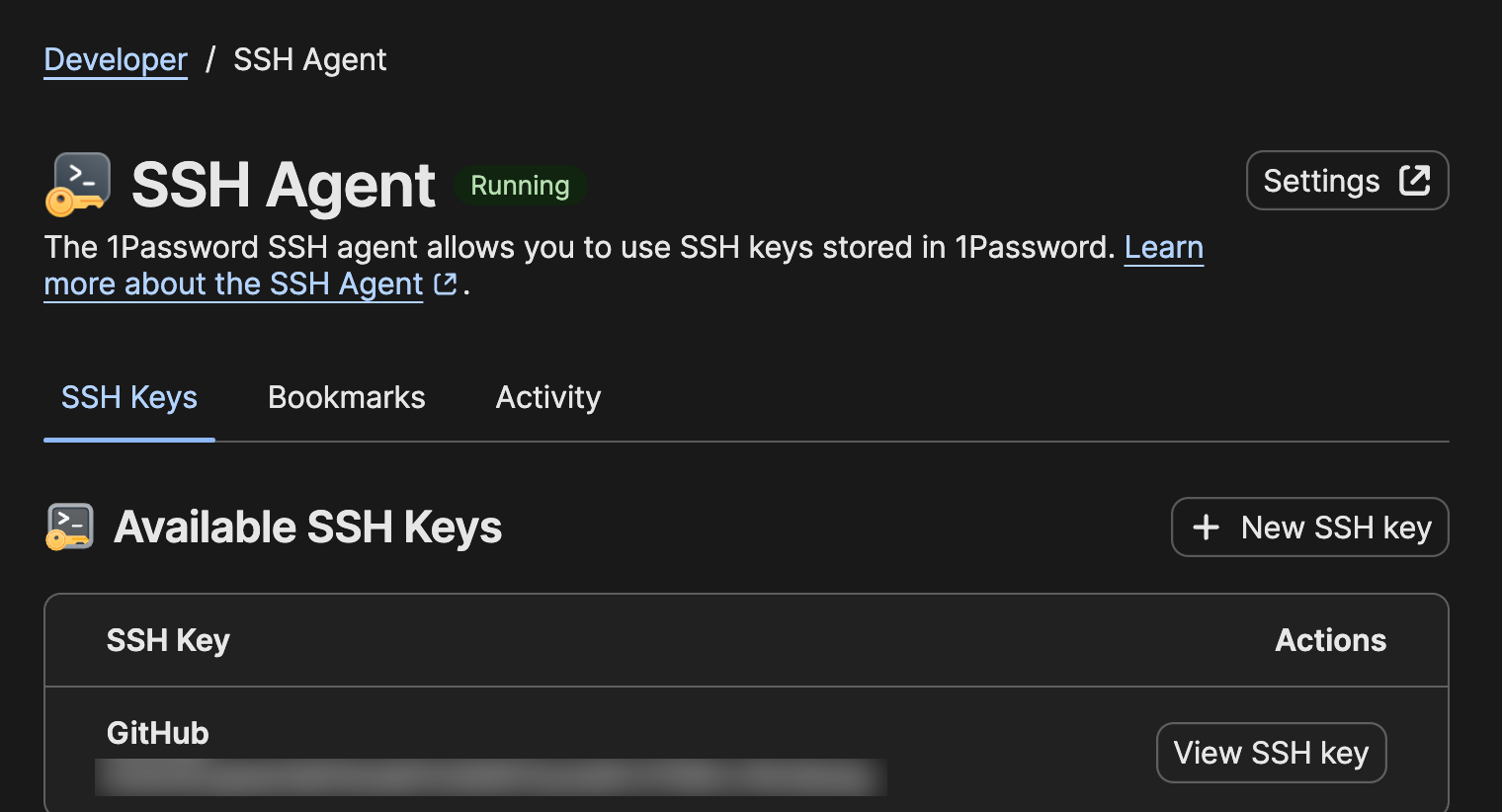
The SSH Agent view makes it easy to confirm the key is actually present before you start debugging SSH client behavior:
Tip
Don't reuse one SSH key everywhere just because it's convenient. Separate keys for personal access, work access, and deploy keys make rotation and revocation much less painful.
Enable the 1Password SSH Agent
Next, turn on the SSH agent in the 1Password desktop app settings.
On macOS, that setting lives under the Developer section in 1Password settings:
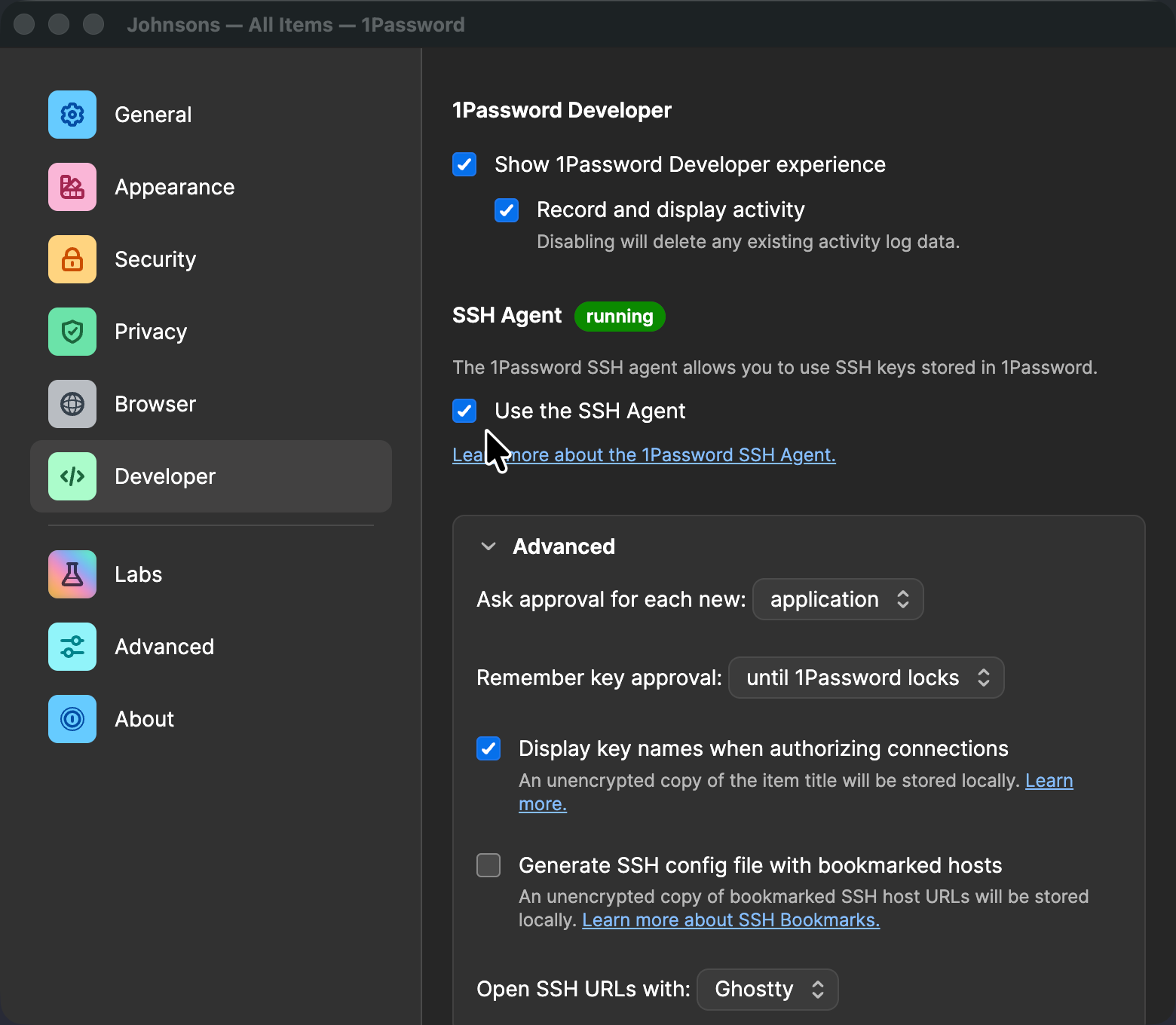
Once it's enabled, 1Password exposes an agent socket that OpenSSH can talk to directly. On macOS, the socket is typically here:
That's the path you'll wire into the SSH client. It's a Unix socket, not an executable, so don't try to run it directly.
Point OpenSSH at the Agent
The cleanest setup is to tell SSH to use the 1Password agent for the hosts where you expect Git authentication.
Add this to ~/.ssh/config:
Host github.com gitlab.com
  IdentityAgent ~/Library/Group\ Containers/2BUA8C4S2C.com.1password/t/agent.sock
If you prefer to route all SSH traffic through the 1Password agent, you can widen the match:
The host-specific version is the safer starting point. It keeps the change targeted while you verify that your existing SSH behavior still looks the way you expect.
Test GitHub or GitLab Authentication
Before you start cleaning up old keys, test the new path explicitly.
For GitHub:
ssh -T [email protected]
For GitLab:
ssh -T [email protected]
If the public key is registered correctly and the 1Password agent is active, you should get the usual authenticated greeting. You may also get a prompt from the 1Password desktop app asking you to approve use of the key.
After that, normal Git commands should continue to work:
git clone [email protected]:OWNER/REPO.git
git fetch
git push
Verify Which Agent SSH Is Actually Using
If authentication doesn't work the first time, don't guess. Ask SSH what it's doing.
Verbose mode is your friend:
ssh -vT [email protected]
That output will usually tell you whether SSH is talking to the 1Password agent, trying an older file-based key, or skipping the agent entirely.
You can also query the agent directly:
If the agent is reachable, ssh-add -l should return the identities it can present.
If you just want to confirm the socket exists, check it like this:
test -S "$HOME/Library/Group Containers/2BUA8C4S2C.com.1password/t/agent.sock" && echo "socket present"
Warning
If you still have IdentityFile entries in ~/.ssh/config, or another agent configured in your shell session, SSH may keep trying those first. When troubleshooting, simplify the config until you can prove the 1Password path works on its own.
Where the CLI Still Helps
Even though the desktop app provides the SSH agent, the op CLI is still useful around the edges. It gives you a terminal-native way to inspect the same vault you use for SSH and application secrets.
For example, you can inspect an item from the terminal:
That's handy when you're auditing item names, vault placement, or related metadata without clicking around in the desktop app.
What op isn't doing here is answering the SSH authentication request itself. The desktop app is the agent. The CLI is the supporting utility.
Migrate Deliberately
Once the 1Password-backed flow works, then clean up older keys.
Do this in order:
- Confirm
ssh -Tsucceeds against every service you care about. - Confirm your day-to-day Git repositories can fetch and push.
- Remove stale public keys from GitHub or GitLab that you no longer want trusted.
- Archive or delete old private key files from
~/.ssh/only after you know they're unused.
Go slow here. A deliberate cleanup is much better than deleting three keys at once and discovering one of them still gates production access.
What I like about the 1Password SSH agent is consolidation. Your SSH keys stop living as unmanaged files, Git keeps using the standard SSH transport, and approval can move through the same desktop app you already trust for the rest of your secrets.
That's a better local model: fewer secrets on disk, fewer mystery keys in ~/.ssh/, and much less guesswork when it's time to rotate or revoke access.