How to Create Terminal Demos as Code with VHS by Charm
Manual terminal recordings tend to age badly. The timing is inconsistent, the cursor jumps, the window size changes between takes, and the one command you needed to correct means starting over. If you have ever tried to capture a polished CLI walkthrough for a README, release note, or docs site, you have probably spent more time re-recording than documenting.
VHS from Charm (a.k.a., Charmbracelet) fixes that by turning terminal demos into source code. Instead of screen recording your desktop, you write a small .tape file that describes the terminal session: window size, theme, typing speed, commands, pauses, screenshots, and output format. Then VHS renders the result into a GIF, MP4, WebM, or even a directory of raw frames.
There are two hard parts in terminal documentation:
- Capturing a terminal session that looks clean and readable.
- Keeping that session reproducible as the tool, docs, and CLI output evolve.
Traditional recording tools help with the first part, but not the second. A hand-recorded GIF is an artifact, not a build input. Once it drifts from reality, you either live with stale docs or record it all over again.
VHS treats terminal demos the same way we treat infrastructure, tests, and CI workflows: as code.
That means:
- the demo is reviewable in a pull request
- the timing is deterministic
- the window size and theme stay consistent
- the render can be regenerated automatically in CI
- the documentation asset has a source file you can version right next to the README
For teams that care about polished developer experience, that is a very big deal.
How VHS Works Under the Hood
VHS is not a desktop recorder with a scripting layer bolted on later. Its rendering pipeline is purpose-built for terminal capture.
At a high level, VHS:
- Starts a pseudo-terminal session for the shell you want to drive.
- Serves that terminal through
ttyd, which renders the session with xterm.js. - Connects to that rendered terminal with a headless browser, using
go-rod. - Captures terminal frames from the xterm.js canvas layers.
- Hands the collected frame sequence to
ffmpeg, which produces the final GIF, MP4, or WebM.
That architecture matters because it explains why VHS output looks so crisp. It is not filming pixels from your desktop; it is rendering the terminal in a controlled environment and then encoding the result deliberately.
Note
VHS requires both ttyd and ffmpeg on your PATH. The simplest install path on macOS or Linux is often:
You can also use the published Docker image if you want a containerized render environment.
Install VHS
If you want to follow along locally, there are two straightforward ways to install VHS.
Using govm in This Demo
The terminal workflow in this post uses govm to switch between installed Go versions.
If you want the full installation, PATH setup, and usage walkthrough, see govm: Switch Between Go Versions Without the Headache.
Why This Is So Good for READMEs and Docs
A good terminal GIF should teach, not distract. That means the font has to be legible, the pacing has to feel intentional, and the commands have to reflect what a developer would actually type.
VHS gives you control over all of that:
Set WidthandSet Heightlock the aspect ratio for GitHub and docs sitesSet Themekeeps contrast and branding consistentSet TypingSpeedavoids the robotic "everything appears instantly" lookSleepgives the viewer time to read meaningful outputHideandShowlet you skip noisy setup so the demo focuses on what matters
That last point is especially important. The best documentation demos are often not full raw sessions. They are edited terminal narratives, and VHS gives you an explicit language for that.
A Real Example: Documenting govm
For a practical demo, imagine you want to document a govm workflow in a README.
govm is a good candidate for this kind of asset. Its value is easiest to understand when you can see the workflow:
- list installed Go versions
- switch to a target Go release
- verify
go version - confirm the active toolchain changed
That is exactly the kind of sequence that screenshots handle poorly and raw terminal recordings make tedious. A VHS tape turns it into a repeatable asset.
The README-Friendly Scope
For this demo, I would not record a full bootstrap install of govm and a fresh Go toolchain from source. That is realistic for a workstation, but it is a poor README GIF. It is slow, noisy, and full of output the reader does not need to memorize.
Instead, the tape below assumes:
govmis already installed- the recording shell can access the
~/.govm/shimdirectory - Go
1.23.12and1.25.2are already installed in the recording environment
That tradeoff is deliberate. The goal of the GIF is to show the workflow the user needs to understand, not to waste frames on bootstrap work. In practice, this is exactly how I would use VHS in a docs pipeline: pre-provision the environment, then render the cleanest possible demo.
Building the Tape
Start by creating a new tape:
Then edit the file and describe the session you want VHS to render.
The Complete .tape File
Here is the exact tape file used for this post. Because it lives in the repository, the blog can import it directly and the same file can be rendered locally or in CI:
Output docs/images/post-vhs-govm-demo.gif

Set Shell "bash"
Set FontSize 20
Set Width 1200
Set Height 720
Set Theme "Catppuccin Frappe"
Set Padding 20
Set WindowBar Colorful
Set CursorBlink false
Set TypingSpeed 75ms

Hide
Type "govm use 1.25.2"
Enter
Type "clear"
Enter
Show

Type "govm list"
Enter
Sleep 2s

Type "govm use 1.23.12"
Enter
Sleep 1500ms

Type "go version"
Enter
Sleep 1500ms

Type "govm use 1.25.2"
Enter
Sleep 1s

Type "go version"
Enter
Sleep 3s
Why These Settings Work Well
Output docs/images/post-vhs-govm-demo.gif: writes the rendered GIF directly into the docs asset path used by this post.Set Shell "bash": avoids ambiguity about which shell is driving the session.Set FontSize 20: large enough to stay readable in GitHub READMEs and docs previews.Set Width 1200andSet Height 720: wide enough for multi-word commands and output without feeling tiny when embedded on a page.Set Theme "Catppuccin Frappe": high contrast, modern, and visually pleasant without being harsh.Set Padding 20andSet WindowBar Colorful: gives the output a polished framed look instead of a raw crop.Set CursorBlink false: avoids distracting flicker in looping GIFs.Set TypingSpeed 75ms: fast enough to respect the reader's time, slow enough to feel human.Hide/Show: keeps PATH setup off-screen so the animation starts with the workflow, not environment plumbing. In this tape, it also preselects1.25.2so the visible switch back to1.23.12is obvious.Sleep: gives the viewer time to actually read the output before the next command starts.
There is an important pattern here: the tape is not just a recording, it is editorial intent encoded as source.
Rendering the Demo
Once the tape looks right, render it:
That gives you a deterministic docs/images/post-vhs-govm-demo.gif generated from the same source file the article is displaying.
The Output
Here is the rendered GIF generated from the tape above:
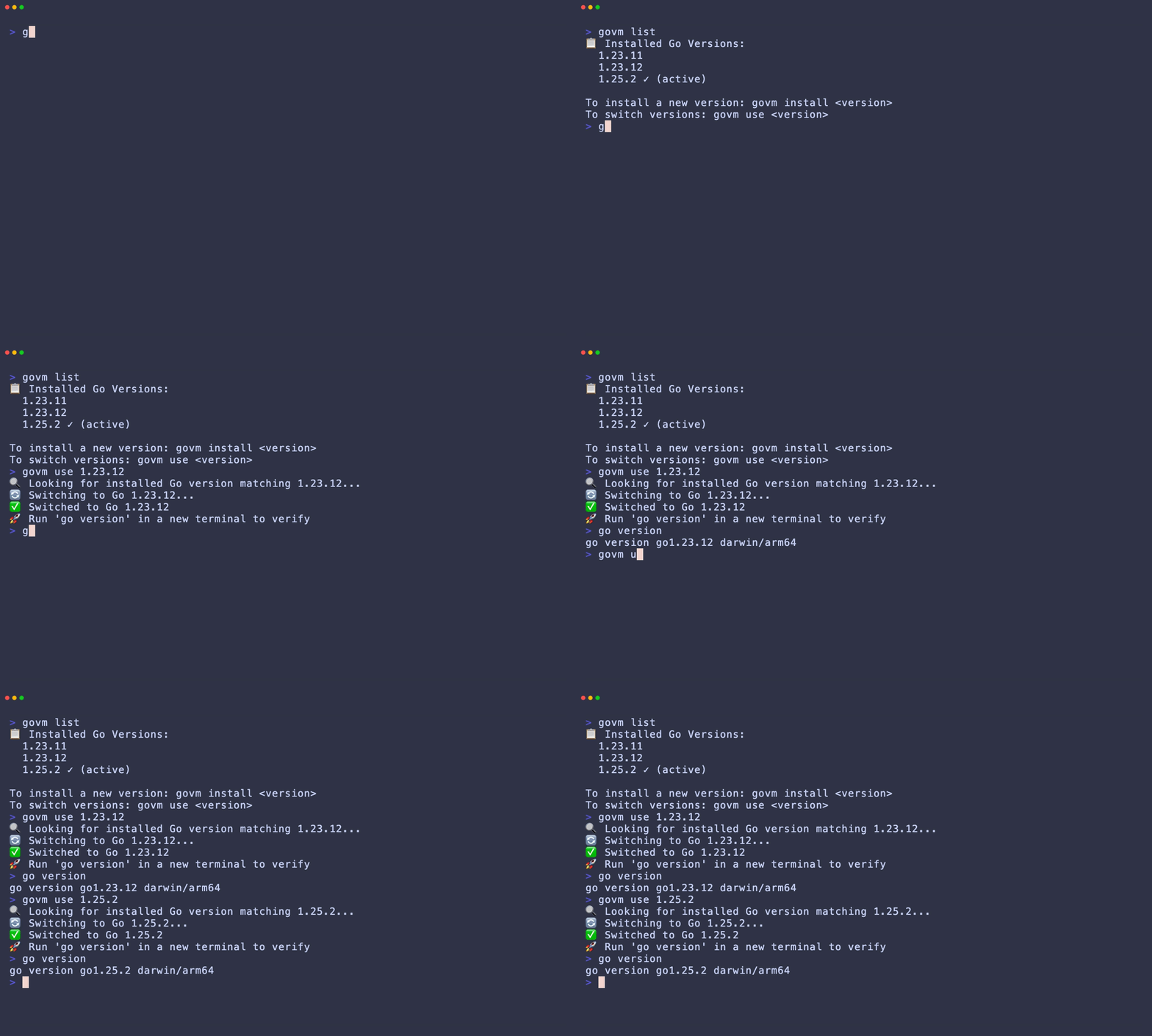
The sequence stays tight and readable: list installed versions, switch from 1.25.2 to 1.23.12, verify go version, then switch back. That is exactly the kind of small, high-signal workflow VHS is excellent at preserving.
In a real repository, I would check in the generated asset, keep the .tape file beside the docs source, and make the tape the reviewable source of truth. This post now does exactly that.
A Second Example: TUIs Work Too
The first demo is deliberately CLI-first because that is the most common README use case. But VHS also works well for interactive terminal apps.
govm is a good example because it ships both a CLI and a Bubble Tea-powered TUI. A second tape lets you show the other half of the experience: launch the app, wait for versions to load, pick a release from the available-versions view, install it, switch to it, and quit.
The TUI Tape
Here is the second tape file used for this post:
Output docs/images/post-vhs-govm-tui-demo.gif

Require govm

Set Shell "bash"
Set FontSize 20
Set Width 1200
Set Height 720
Set Theme "Catppuccin Frappe"
Set Padding 20
Set WindowBar Colorful
Set CursorBlink false
Set TypingSpeed 75ms

Type "govm"
Enter
Sleep 8s

Down
Sleep 1500ms

Type "i"
Sleep 7s

Type "u"
Sleep 2s

Type "q"
Sleep 2s
The TUI Output
Here is the rendered TUI GIF:
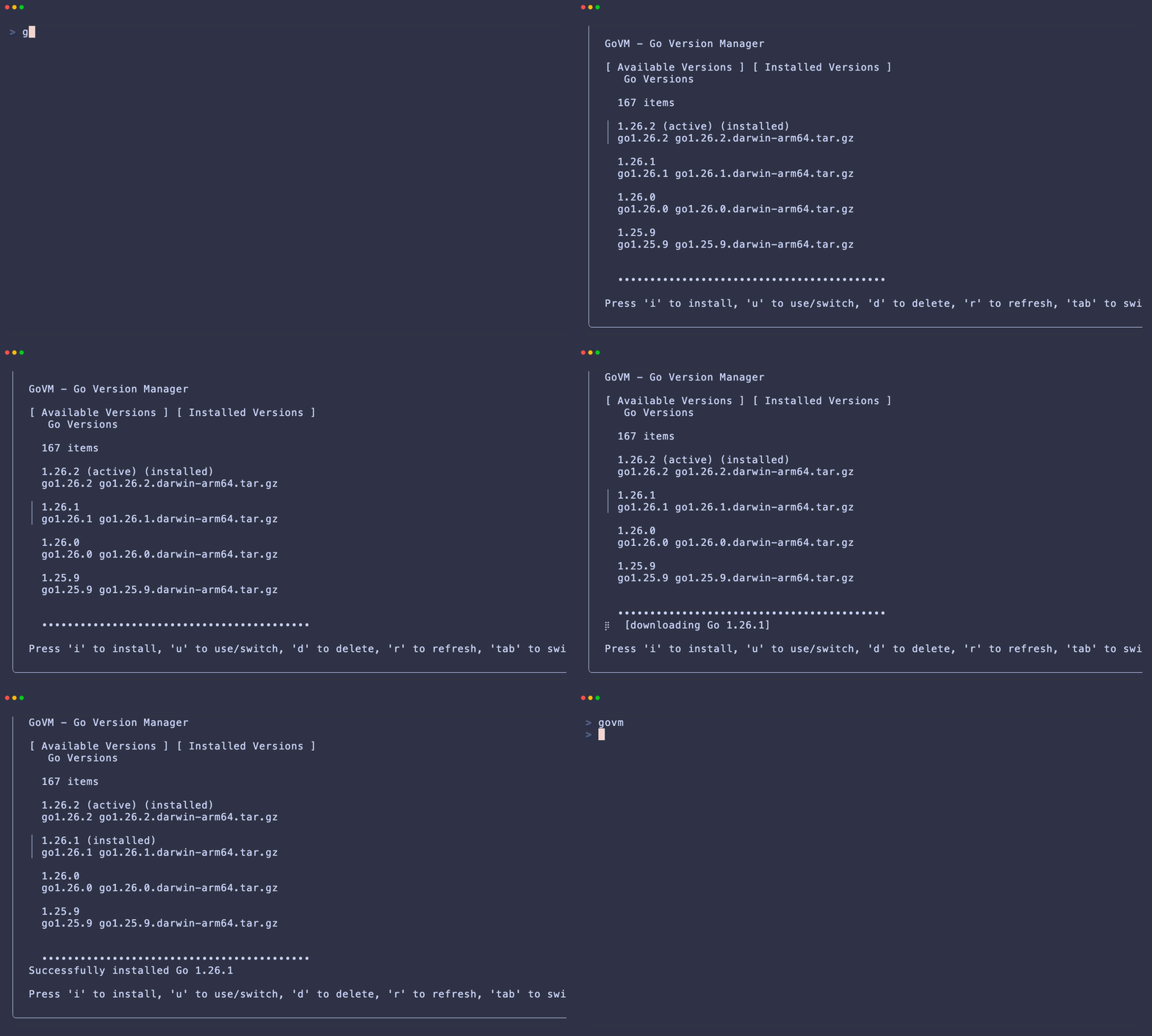
This kind of demo is excellent for showing layout, navigation, and overall feel. It also captures an actual user task instead of just a static tour of the interface.
The tradeoff is that it depends a little more on the runtime environment. In this case, govm loads available Go versions from go.dev on startup, so the render assumes network access when the tape runs, and the selected version must not already be installed if you want the install step to stay visible.
What Makes VHS Better Than "Just Record It"
The deeper you get into docs tooling, the more VHS starts to feel less like a novelty and more like missing infrastructure.
Consider what you gain:
- Repeatability: rerender the exact same demo after a CLI change.
- Reviewability: diffs happen in a
.tapefile, not in a binary blob nobody wants to inspect. - Consistency: every demo on the site can share the same theme, sizing, and pacing rules.
- Automation: the GIF becomes a build artifact instead of a one-off piece of recorded media.
That is a much healthier model for docs teams and open source maintainers.
Advanced Tips
1. Use Hide to Keep Demos Focused
One-time setup is often necessary, but rarely useful to watch. Build binaries, source shell scripts, seed data, or clean temp directories off-screen, then Show when the actual user workflow begins.
2. Prefer Stable, Intentional Output
CLI demos are part of your documentation API. Avoid volatile timestamps, random IDs, or progress bars unless they are the point of the demo. If necessary, seed environment variables or wrap the command with a fixture script so the output stays stable across renders.
3. Render in CI/CD
This is where VHS really shines.
Charmbracelet publishes charmbracelet/vhs-action, which makes it straightforward to rerender demo assets in GitHub Actions. That gives you a clean docs workflow:
- Change the CLI or the docs.
- Regenerate the GIF from the tape in CI.
- Review the tape and asset together in the pull request.
For projects that treat docs seriously, that is a very strong pattern.
4. Use Alternative Outputs for Testing
VHS is not limited to GIFs. It can render MP4, WebM, and frame directories, and the project also supports text-oriented outputs for golden-file style testing. That opens the door to using the same tape language for both documentation and lightweight integration validation.
5. Record First, Then Refine
If you are not sure how to write the tape from scratch, vhs record can generate a starting point from your terminal actions. Clean it up afterward. In practice, that is often the fastest way to discover the right command sequence and then convert it into a polished, maintainable tape.
VHS is one of those tools that feels obvious the moment you use it. Terminal demos are code, or at least they should be. Once you start treating them that way, your documentation becomes easier to review, easier to maintain, and easier to trust.
If your project has a CLI, setup workflow, or version manager story that belongs in a README, VHS is worth adding to your docs toolchain. Write the demo once, commit the tape, and regenerate the asset whenever the workflow changes.
That is a far better workflow than recording your terminal by hand forever.
References
- Charmbracelet VHS on GitHub
govmon GitHubttydon GitHubffmpegofficial websitecharmbracelet/vhs-actionon GitHub